
Converting
Sources
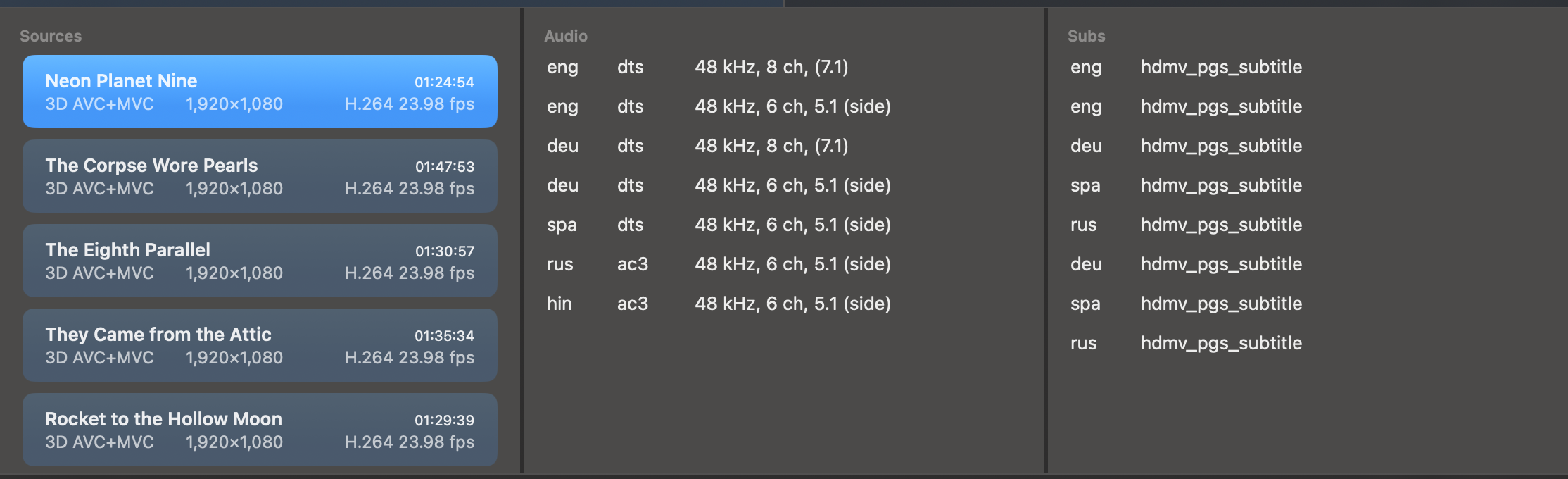
The sources are the movies waiting in the window. Each keeps its own settings, and the bottom panel lists them with their tracks.
Adding movies
Drop MKV files on the well in the left panel, or click Open (⌘O) and pick them. Several at once is fine. Disc images and BDMV folders open the same way and are read by MakeMKV, see Direct from disc.
MakeSBS3D checks each file before it joins the list. It has to be an MKV, written by MakeMKV, with the 3D AVC+MVC video track in it. A file that fails shows its reason in the left panel:
- Not an MKV file. The file has another format.
- Not generated by MakeMKV. The MKV came from another tool, which drops the second view.
- 3D AVC+MVC track missing. The Mpeg4 MVC track was left unchecked in MakeMKV. Rip the disc again with it checked.
The output folder
The converted movie goes next to its source. When a folder is set under Settings → Defaults → Output, it goes there instead. When the source sits on an external drive or in a folder the app cannot write to, MakeSBS3D asks you to pick a folder the first time, which also grants it permission to write there.
Selecting a movie
Click a movie in the Sources list to select it. The right panel shows that movie's settings, and the Audio and Subs lists show its tracks with their languages. Start converts the selected movie, Start All every movie in the list, each with the settings you gave it.
Every new movie starts from the defaults under Settings → Defaults, so set those once and change only what a particular movie needs.
Clearing the list
Eject (⌘E) empties the list and returns the window to its starting state. The files on disk stay where they are.