
Converting
Direct from disc
With MakeMKV installed, MakeSBS3D reads the 3D Blu-ray itself: it lists the titles, has MakeMKV extract the one you start, converts it and ejects the disc.
The Disc button
The Disc button appears in the toolbar when MakeMKV is in your Applications folder, and lights up when a Blu-ray is in the drive. Insert the disc and click it. MakeSBS3D reads the titles and lists every one with a 3D view, with the name and cover art the disc carries.
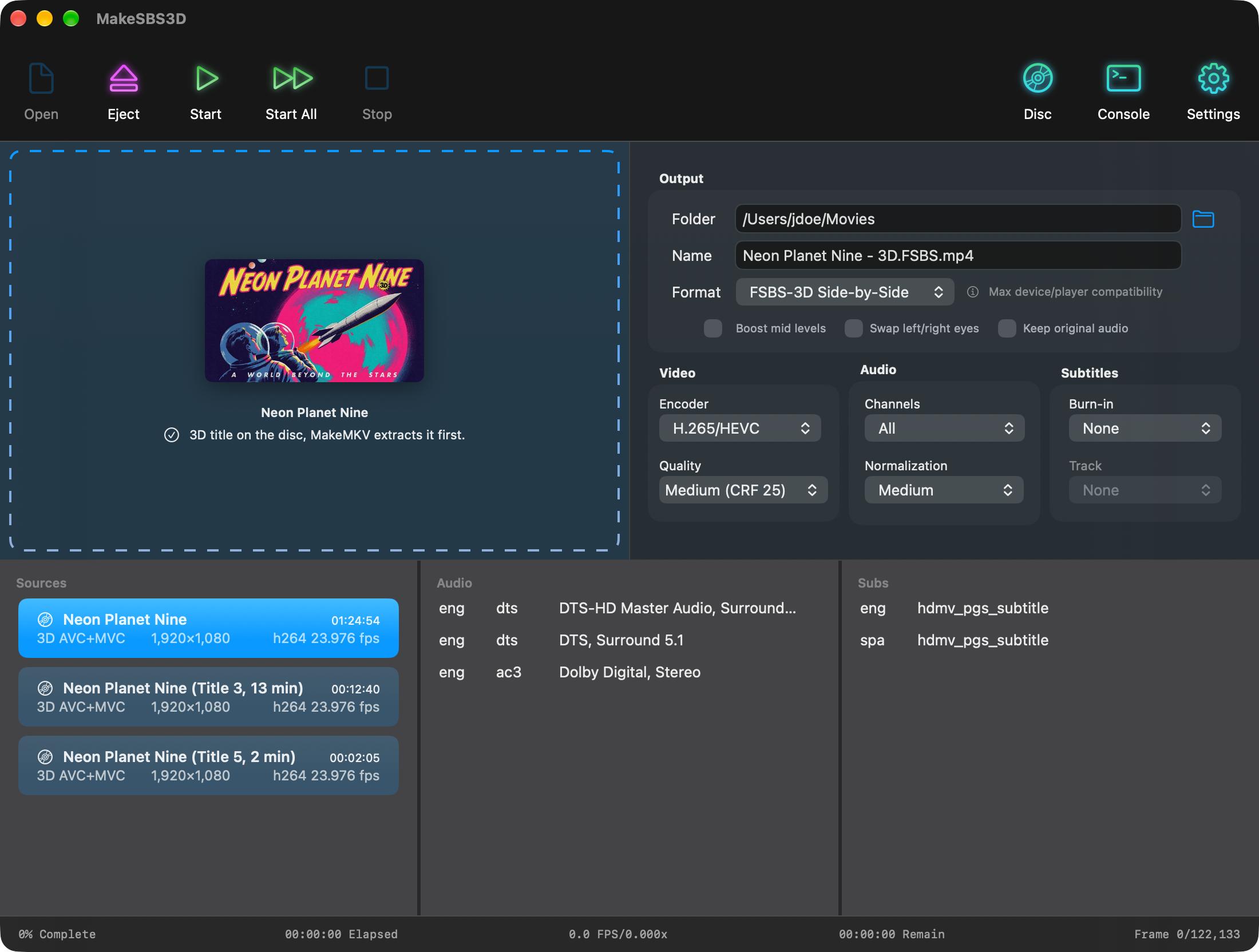
The main movie, the largest title, gets the plain name and is selected. Extras and short features get the same name with their title number and length added, so no two outputs share a name. Each entry reads "3D title on the disc, MakeMKV extracts it first".
Converting from the disc
The titles sit in the Sources list like MKVs and take the same settings. Start converts the selected title and Start All every one. The left panel shows Extracting while MakeMKV writes the title into a hidden work folder beside the output, then the conversion takes over. The disc is ejected once every title listed from it is done.
Before extracting, MakeSBS3D checks that the output folder has room for the MKV plus 2 GB. When it has less, the title stops with "Not enough space in the output folder for the disc title". Pick another output folder or make room.
The extracted MKV
MakeSBS3D removes the extracted MKV with the other temporary files when the movie is done. To keep it beside the converted movie, turn on Keep the MKV extracted from the disc under Settings → Defaults → Disc.
Disc images and folders
A disc image (.iso) or a BDMV folder is read the same way as a disc: open it with Open, drop it on the well, or open it from the Finder with MakeSBS3D. The output folder becomes the folder that holds the image, the same as for a movie file, and a default output folder set in Settings still comes first.
MakeMKV needs a license of its own
MakeMKV is a separate product with its own terms. MakeSBS3D runs the copy you installed and uses your MakeMKV settings.